A new Beta version of "Auto Shader Compilation" has been added to the NVIDIA Desktop App. The feature takes DirectX 12 game shaders and rebuilds them after driver updates and when your computer is idle - or on demand.
Note the word rebuilds. Yes, unfortunately when you first install a game, you will still need to wait for shaders to generate with the game open. Every time after that though, after your drivers update, the app will do its best to keep things recompiled.
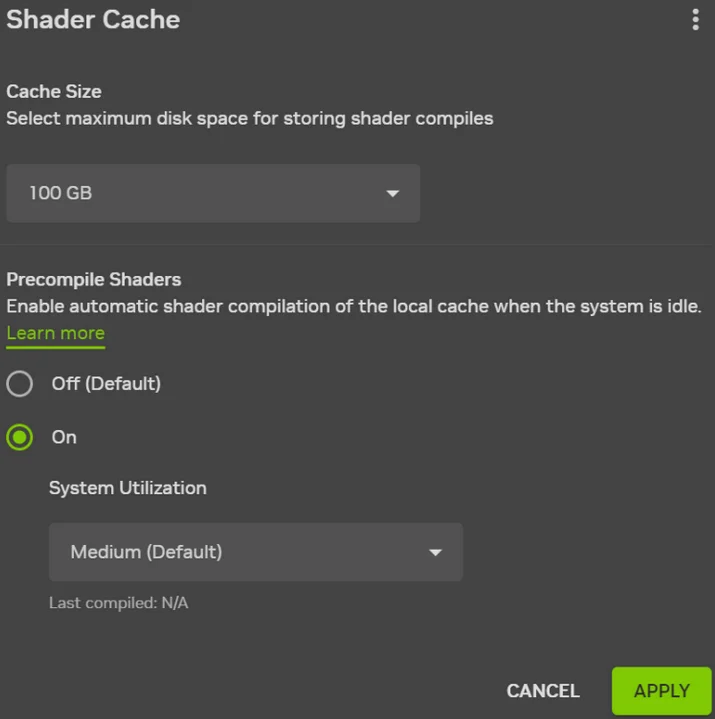 As you can see, you can also change the overall cache size for storing shaders on disk and configure when it is allowed to recompile shaders.
How to Enable Auto Shader Compilation Beta
You will need to enable the feature inside of the app under "Graphics -> Global Settings -> Shader Cache" because it is off by default.
Auto Shader Compilation Beta requires a minimum driver level of the Game Ready Driver 595.97 WHQL, so if you haven't updated your drivers in a while but want to experience less time waiting for shader compilation, get your updates!
How to Manually Recompile Shaders
When you have the Shader Cache screen open, the 3 dots will let you "Compile Now". Nice and easy!

What Else Was In the Update?
NVIDIA released a whole blog talking about the new app update which also dropped an update to DLSS 4.5. DLSS 4.5 Multi Frame Generation and Frame Generation users can activate a new and improved AI model in select titles.
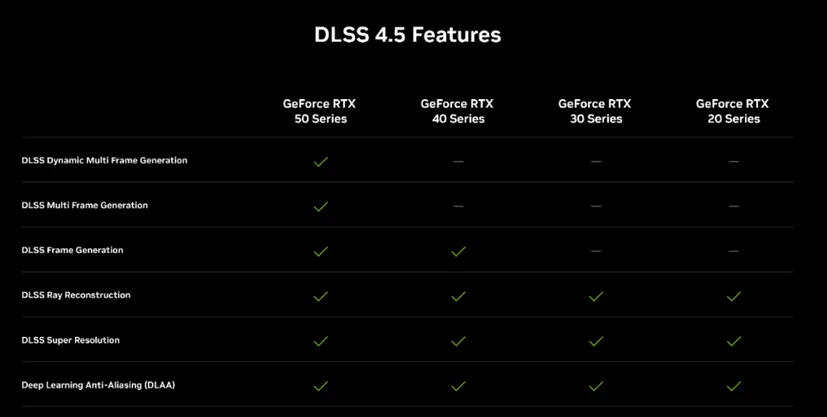
Quote From NVIDIA Today, DLSS 4.5’s feature set expands with the launch of Dynamic Multi Frame Generation, an intelligent system that functions like an automatic transmission for your GPU. Instead of sticking to a fixed multiplier, it automatically shifts between different frame multipliers to strike the perfect balance between frame rate, image quality and responsiveness.
In other words, it only generates the frames needed to maximize your target frame rate, or the refresh rate of your display, be that 120Hz, 144Hz, 240Hz, or higher.
By continuously monitoring the gap between your GPU’s performance and your display’s maximum refresh rate, the system adapts in real-time. In graphically intense scenarios, it ‘upshifts’ and increases frame generation to bridge performance dips, ensuring your high-refresh display remains buttery smooth. Conversely, as the workload lightens, it seamlessly shifts the multiplier down to only compute what’s needed.
DLSS 4.5 Dynamic Multi Frame Generation can be activated and configured globally, or on a per game basis in the NVIDIA app’s Graphics tab.
Open “DLSS Override - Frame Generation Mode”, select “Dynamic”, and choose “Max refresh rate” for the NVIDIA app to synchronize your maximum frame rate with the maximum refresh rate of your display, for optimum motion clarity. Alternatively, pick “Custom” and type in a maximum frame rate for DLSS 4.5 Dynamic Multi Frame Generation to target.
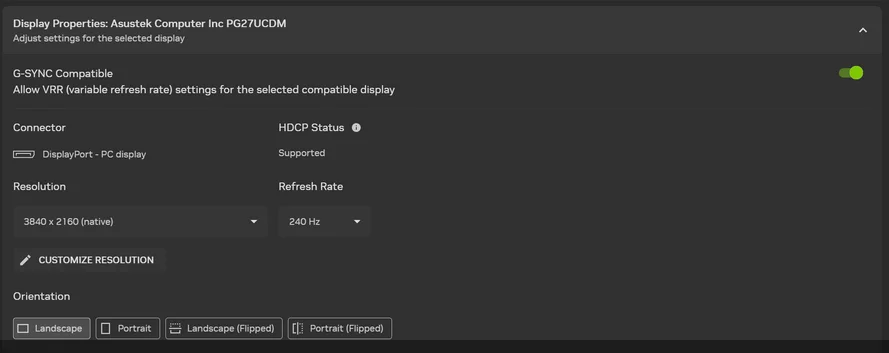
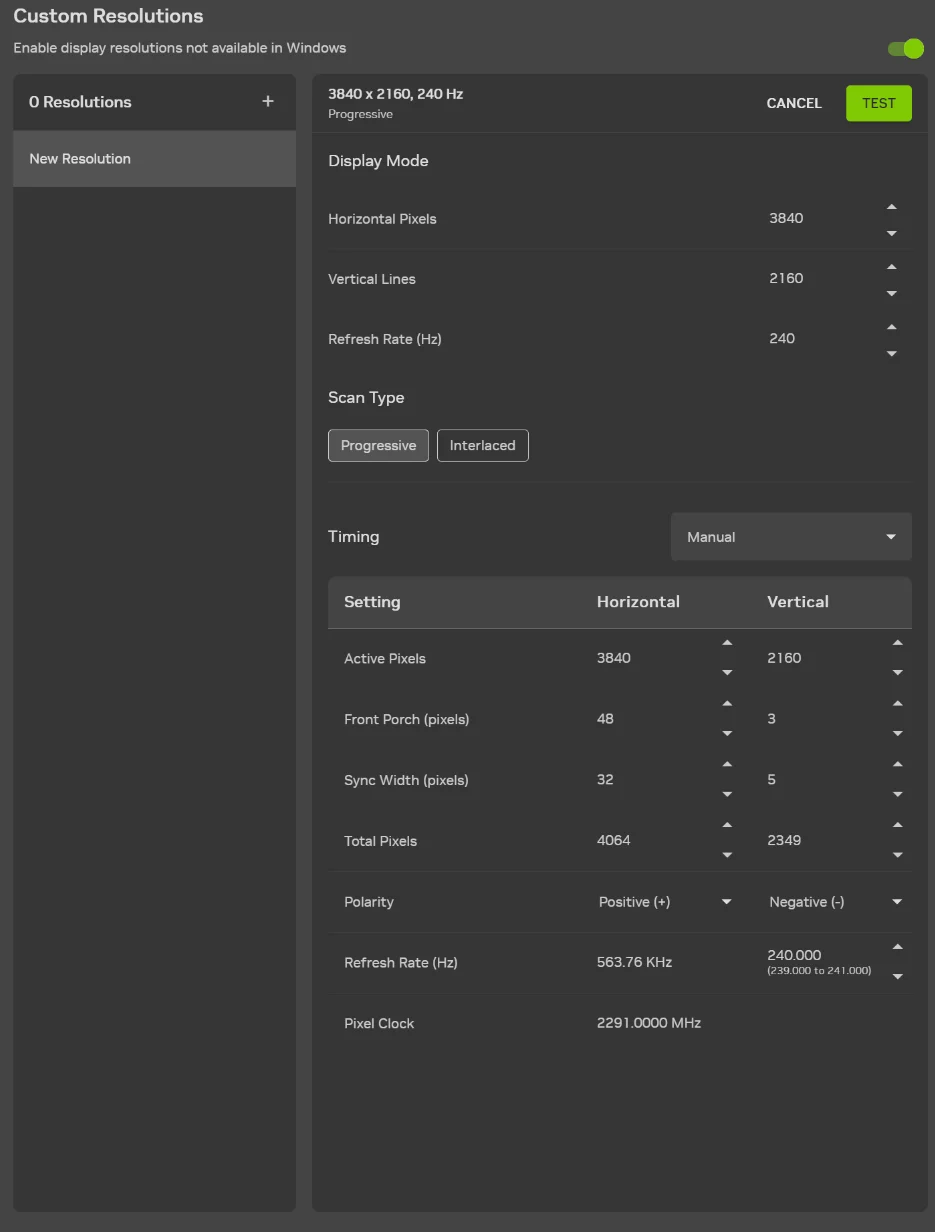
We also get a new streamlined way to create custom resolutions! This makes it easy to overclock displays and even allow retro gamers to better render classic systems and titles.
Leave a Comment