

WoW Intel 13th/14th Gen CPU Warning: How to Fix It
Seeing WoW's Intel 13th/14th gen CPU warning? Here's what it means, why it happens, and the exact steps to update your BIOS and stop the crashes.

If World of Warcraft pops up a message saying it detected an Intel 13th or 14th generation processor, don't panic. It's a warning, not a ban or a virus. Blizzard added it because a real hardware issue with certain Intel Core i7 and i9 chips (13th and 14th gen) was causing game crashes and instability. The fix is almost always a BIOS update from your motherboard maker that applies Intel's corrected voltage settings.
What the Warning Actually Means
Intel's 13th gen (Raptor Lake) and 14th gen (Raptor Lake Refresh) high-end CPUs had a bug where the chip requested too much voltage over time. That gradually degraded the processor and led to random crashes, often in games that push the CPU hard. WoW happens to be one of those games, so Blizzard built in a detector that flags affected CPUs and points you toward a fix.
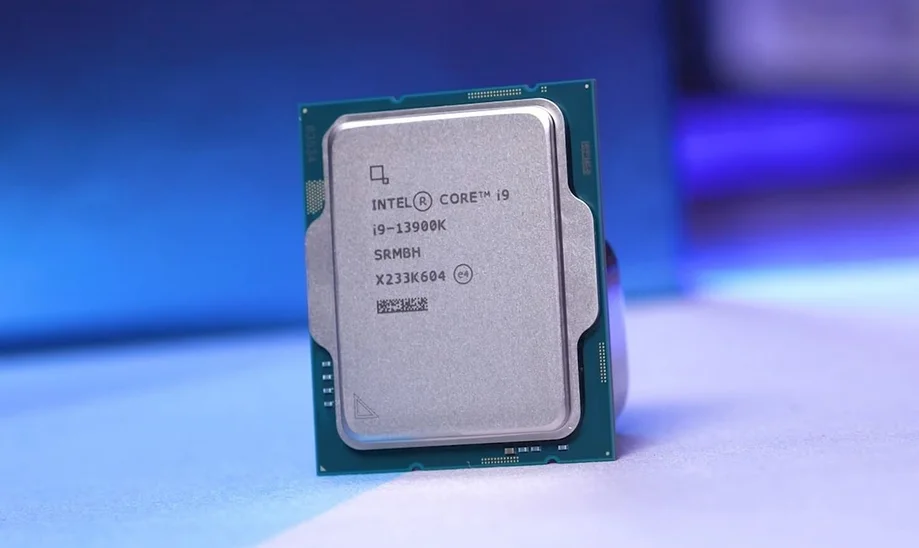
The message is mostly aimed at people running an i7-13700K, i9-13900K, i7-14700K, i9-14900K, and similar K/KS/HX models. If you're on a lower-end i5 or a non-overclockable chip, you're far less likely to be affected, but the warning can still appear.
The Main Fix: Update Your BIOS
Intel released a microcode update (0x12B and later) that fixes the voltage problem. You get it through a BIOS update from your motherboard manufacturer. This is the single most important step.
Find your motherboard model. Press Windows + R, type msinfo32, and hit Enter. Look at "BaseBoard Manufacturer" and "BaseBoard Product" for the brand and model (for example, ASUS ROG STRIX Z790-E).
Go to the manufacturer's support page. Search "[your motherboard model] BIOS download" and open the official ASUS, MSI, Gigabyte, or ASRock page.
Download the latest BIOS that mentions microcode 0x12B (or newer) or "Intel 13th/14th gen stability/voltage fix." Most boards got this update in late 2024.
Install it using the BIOS flash tool built into your board (usually in the BIOS itself or a Windows utility from the same maker). Follow their instructions exactly and don't shut off the PC mid-update.
Boot back into Windows and load WoW to confirm the warning is gone.
After updating, it's worth loading BIOS defaults so the new safe voltage profile is fully applied, especially if you'd previously messed with overclock settings.
What if the Warning Still Shows Up After Updating
Sometimes the message lingers even after a BIOS update. Try these:
Confirm the BIOS version actually changed. Reopen msinfo32 and check the BIOS Version/Date against what you flashed. If it didn't take, redo the flash.
Update Intel's Default Settings. In BIOS, look for an Intel power/performance profile and set it to "Intel Default Settings" or the "Performance" preset rather than a custom or "Extreme" power profile.
Run a fresh scan of game files. Open the Battle.net launcher, click the gear next to Play, and choose Scan and Repair.
Update your chipset drivers from Intel's site, then restart.
If WoW is Crashing Along With the Warning
The warning often comes with actual crashes (display driver errors, freezes, or full system reboots). The BIOS update is the real fix, but these help reduce crashes in the meantime:
Update your GPU drivers to the newest version from NVIDIA or AMD.
Lower in-game settings temporarily, especially anything CPU-heavy, to reduce the load while you sort out the BIOS.
Disable any CPU overclock or undervolt you've set manually until you've applied the official fix.
Check your temps. If the CPU is hitting 90-100C under load, your cooling needs attention too.
My CPU Already Got Damaged. Now What?
The voltage bug could physically degrade a chip over time, and a BIOS update can't reverse damage that's already happened. If your CPU keeps crashing even after a correct BIOS update, default voltage settings, and good cooling, the chip itself may be degraded.
Intel extended the warranty on affected boxed 13th and 14th gen processors to five years. If yours is failing, contact Intel support with your CPU details for a possible RMA (replacement). Keep your proof of purchase handy.
Quick Recap
The warning means WoW spotted an Intel 13th/14th gen CPU affected by the voltage bug.
The fix is a BIOS update with microcode 0x12B or newer from your motherboard maker.
Load BIOS defaults / Intel Default Settings after updating.
If crashes continue after all that, your CPU may be degraded - contact Intel about the extended warranty.
Once the BIOS is updated and stable, the message should stop appearing and your game should run normally again.
About_Author

Robert "Fluxflashor" Veitch is the founder of Out of Games. With over a decade of experience in gaming content, and being done with the exhaustion of corporate nonsense, he wanted to do something different with a focus on the community in this online world that tries so hard to just make everyone just another number. Robert is currently playing whatever interesting game shows up next. He can be contacted via direct messages.
More_World of Warcraft_Guides
What Is Lust in WoW? Bloodlust and Heroism Explained

When Did World of Warcraft Come Out? Full Date Guide

Why Is World of Warcraft Down? Server Status Explained
Latest_World of Warcraft_Guides
What Is Lust in WoW? Bloodlust and Heroism Explained
When Did World of Warcraft Come Out? Full Date Guide
Why Is World of Warcraft Down? Server Status Explained
// join_the_conversation
Sign in to share your thoughts, vote on comments, and connect with the community.
Comments
// no_comments_found
Be the first to share your thoughts!
Leave a Comment